
Online Privacy and Safety Tune Up
Purpose: To offer strong recommendations and steps to enhance online privacy and safety after a review related to emerging vulnerabilities.
Facebook Profiles
At the time of this review (May 17, 2026 6:30PM Central Time), Facebook profiles for close relatives of the impacted individual are publicly available. While individuals without a Facebook account may not be able to view content, anyone with an account can access historical posts/images/content. This would include the ability to cross reference personally identifiable information, such as images, names, locations, of not just the impacted individual but their extended circle of connections. This presents significant vulnerabilities for multiple parties.
Recommendations
To limit safety risks, our strongest recommendation is for all connections to make their Facebook profiles visible to friends only. This is also likely the easiest step to take.
To do this, please follow this link while logged in to Facebook: https://www.facebook.com/privacy/dialog/grouped-controls-audience. This will take you to a pop-up to control the audience for anything you post.
1. Profile information
In the “Audience settings” dialog, select the first section, “Profile information”.
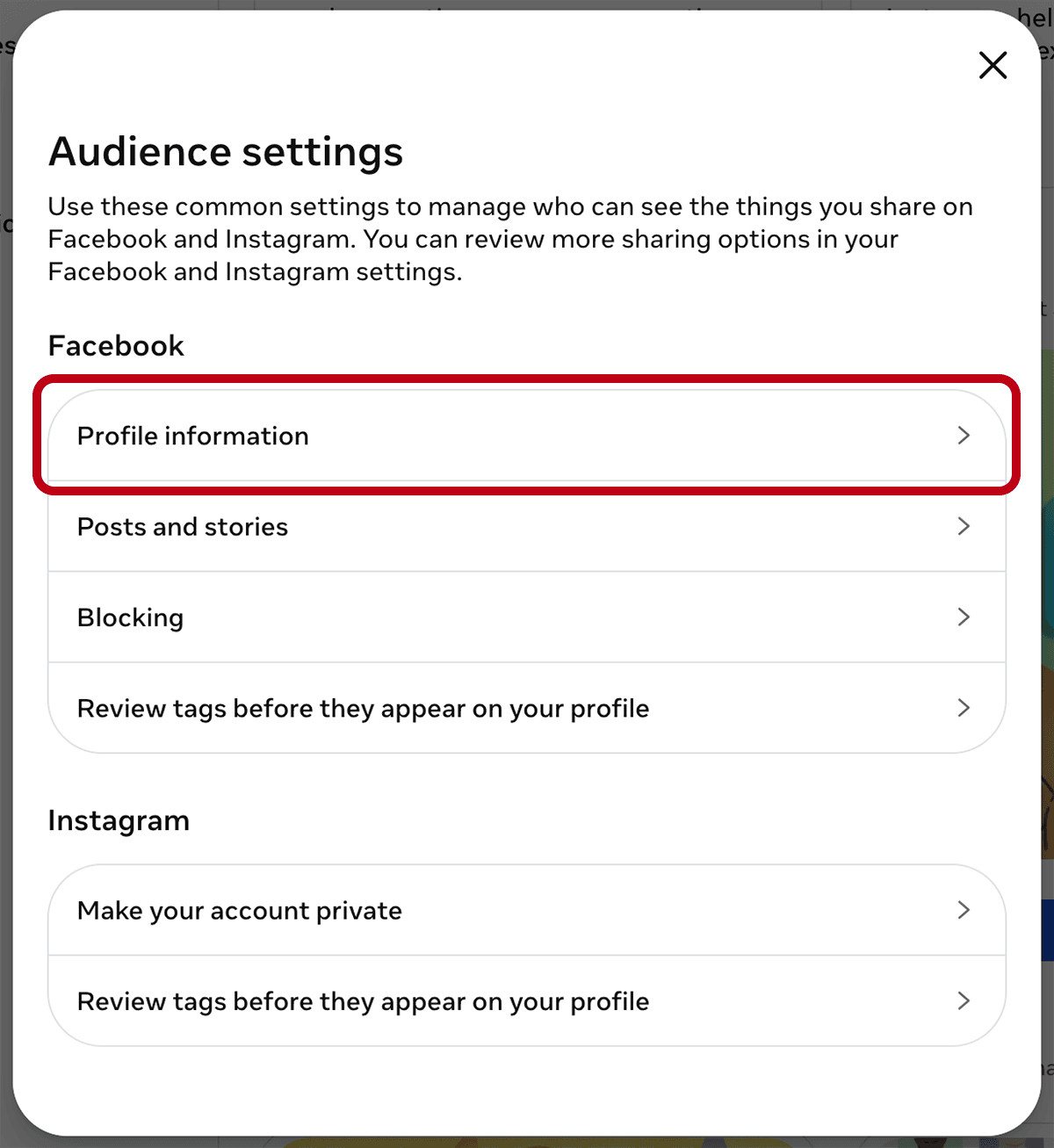
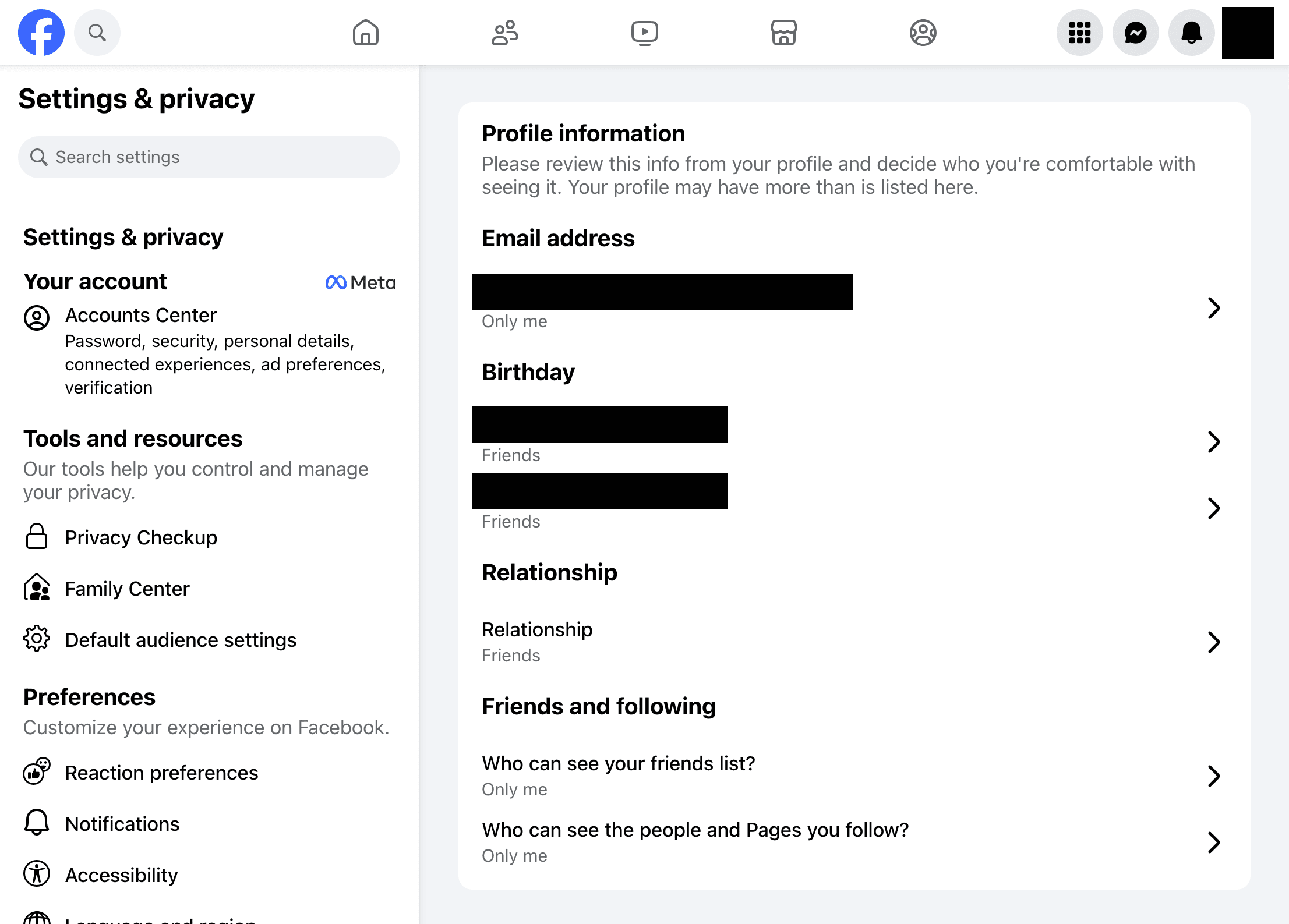
Clicking the arrows for each option in this section will allow you to make changes to your current audience. Best practice would be to choose “Only me” for personal information like “Phone Numbers” and “Email address”. While we would also recommend “Only me” for birthday and relationship, limiting visibility to “Friends” would significantly reduce risks, if not already selected.
For the “Friends and following” section, the recommendation would be to select “Only Me”. However, limiting visibility to at least “Friends” would significantly reduce risks, if not already selected.
2. Posts and stories
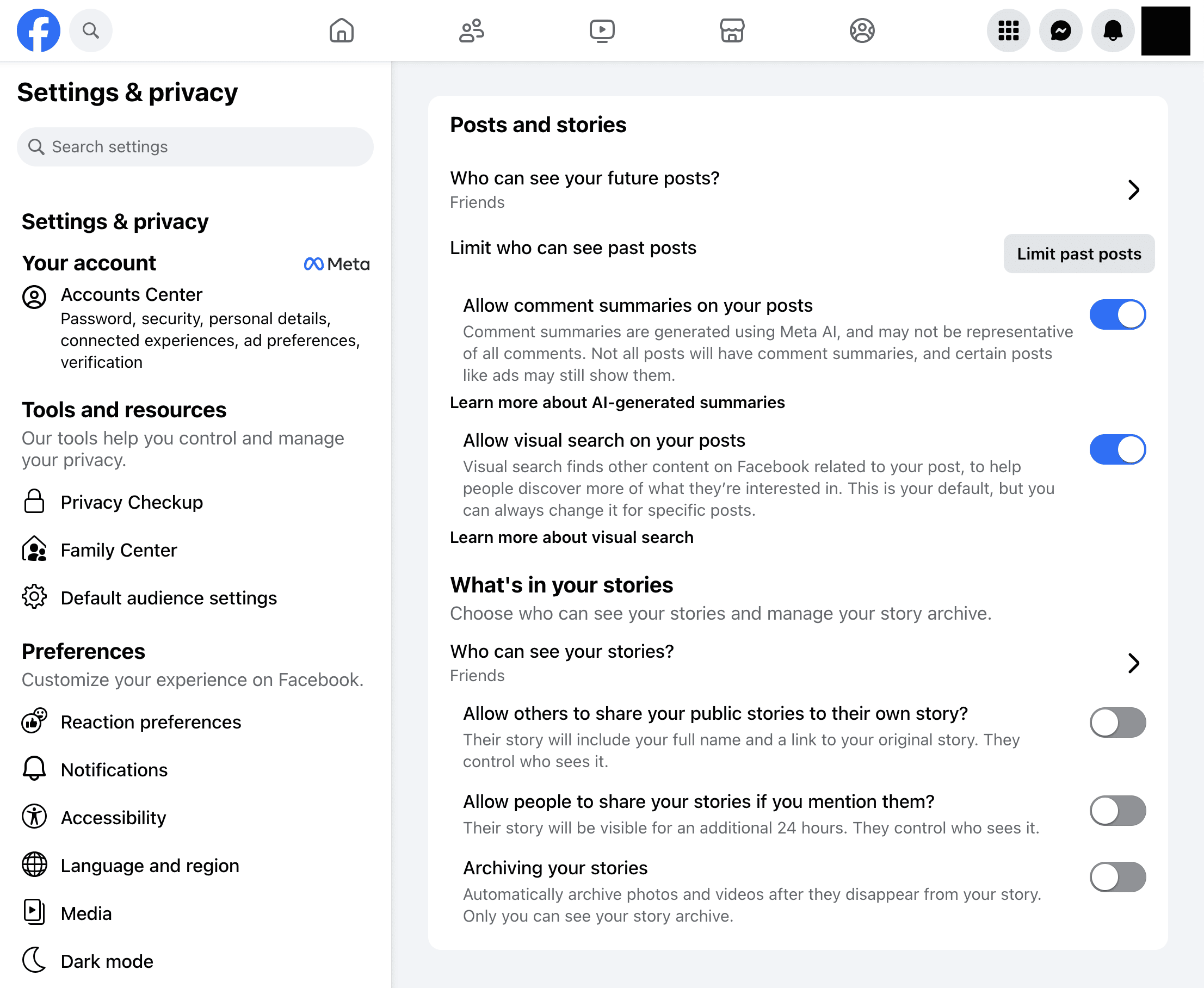
The next section, “Posts and stories”, can be accessed here: https://www.facebook.com/settings/?tab=posts_and_stories_category
Best practice would be to limit future posts to “Friends”.
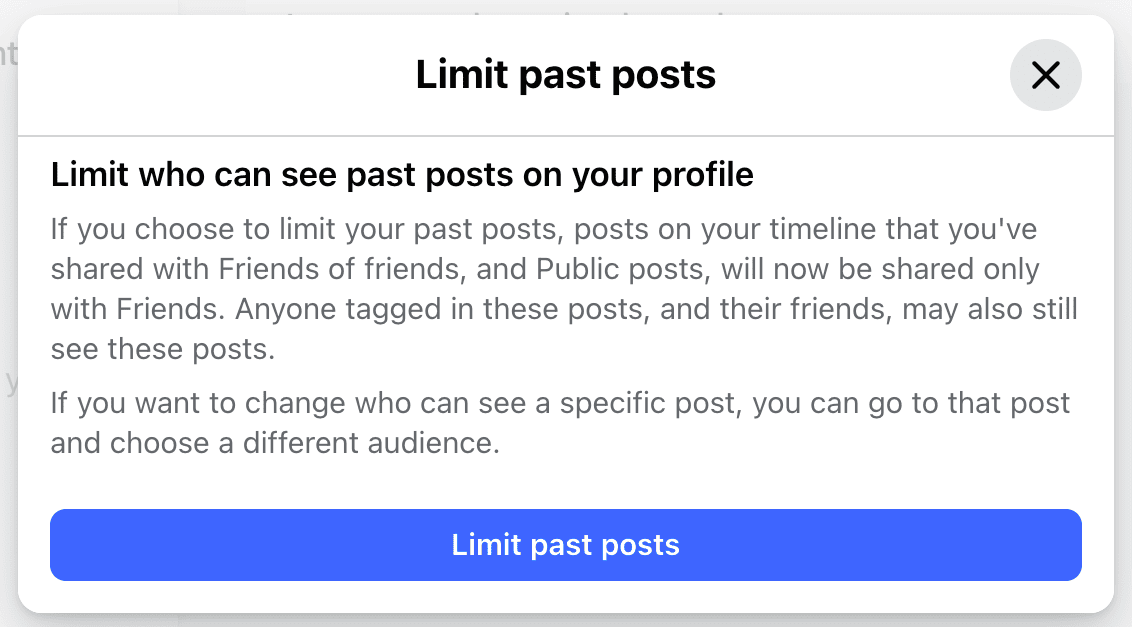
Select “Limit past posts” and confirm this option by selecting “Limit past posts” in the pop-up.
Note: This is an important step to ensure people outside of your friends list cannot access images/posts/content that may depict the impacted individual.
We also recommend that you limit who can view your “Stories” to “Friends” and toggle each of the additional buttons on the page to “Off”.
3. Reviewing
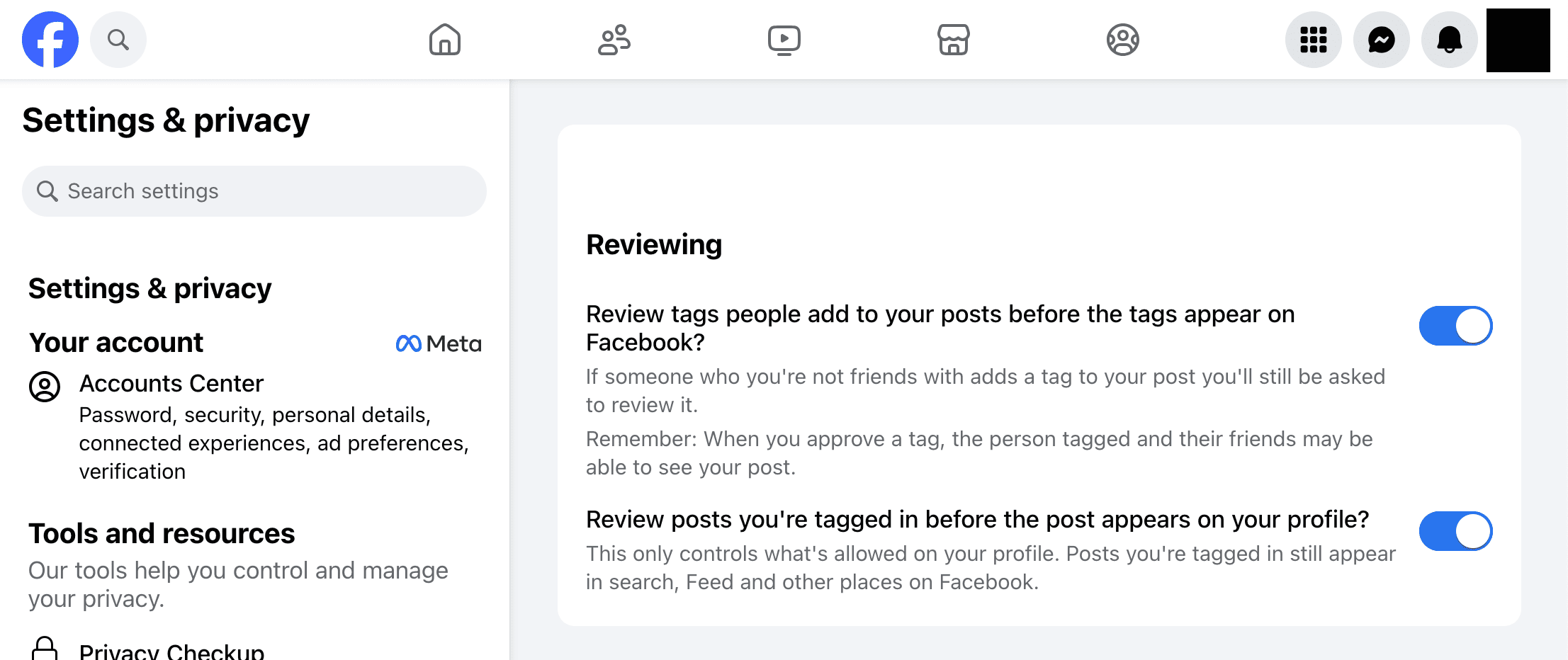
In the “Reviewing” section (https://www.facebook.com/settings/?tab=reviewing_category), we recommend that you toggle both sections “On” to prevent other profiles from being able to post to your profile or tag you in posts without your review.
4. Instagram
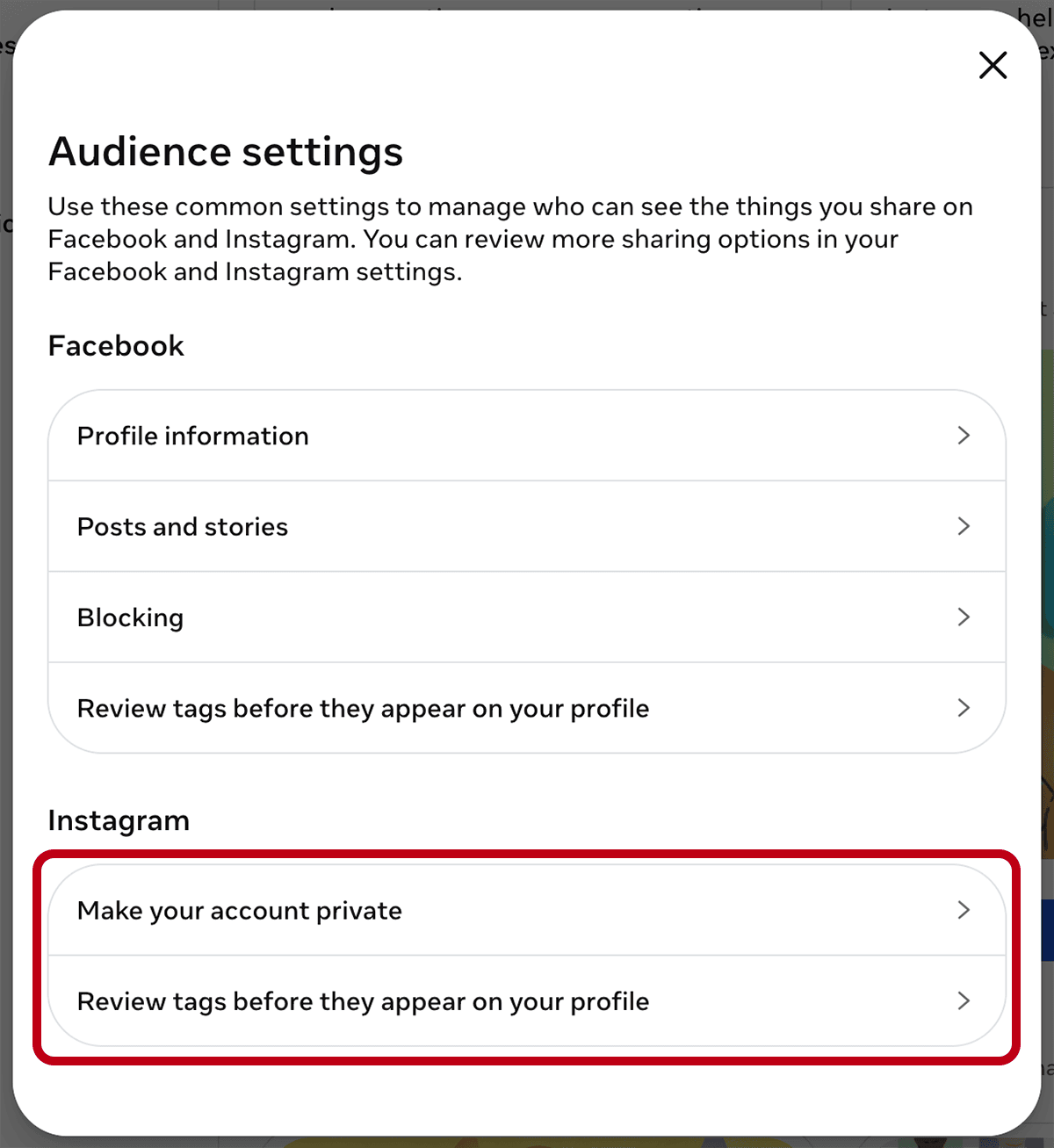
If you have an Instagram account, we would also recommend that you return to https://www.facebook.com/privacy/dialog/grouped-controls-audience, and take the additional steps for Instagram.
Select “Make your account private”.
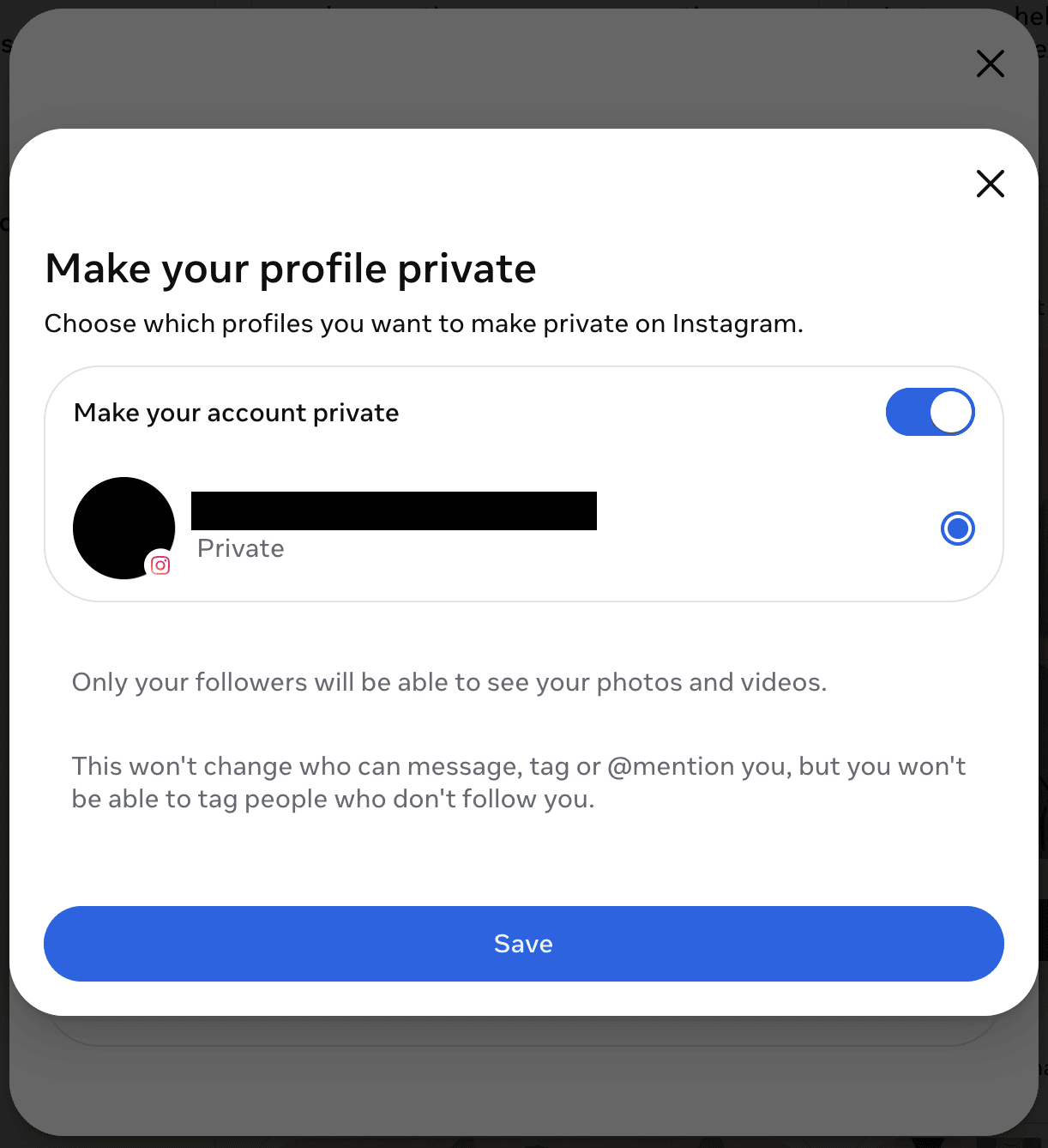
Toggle “Make your account private” “On” and select the corresponding account(s), then select “Save”.
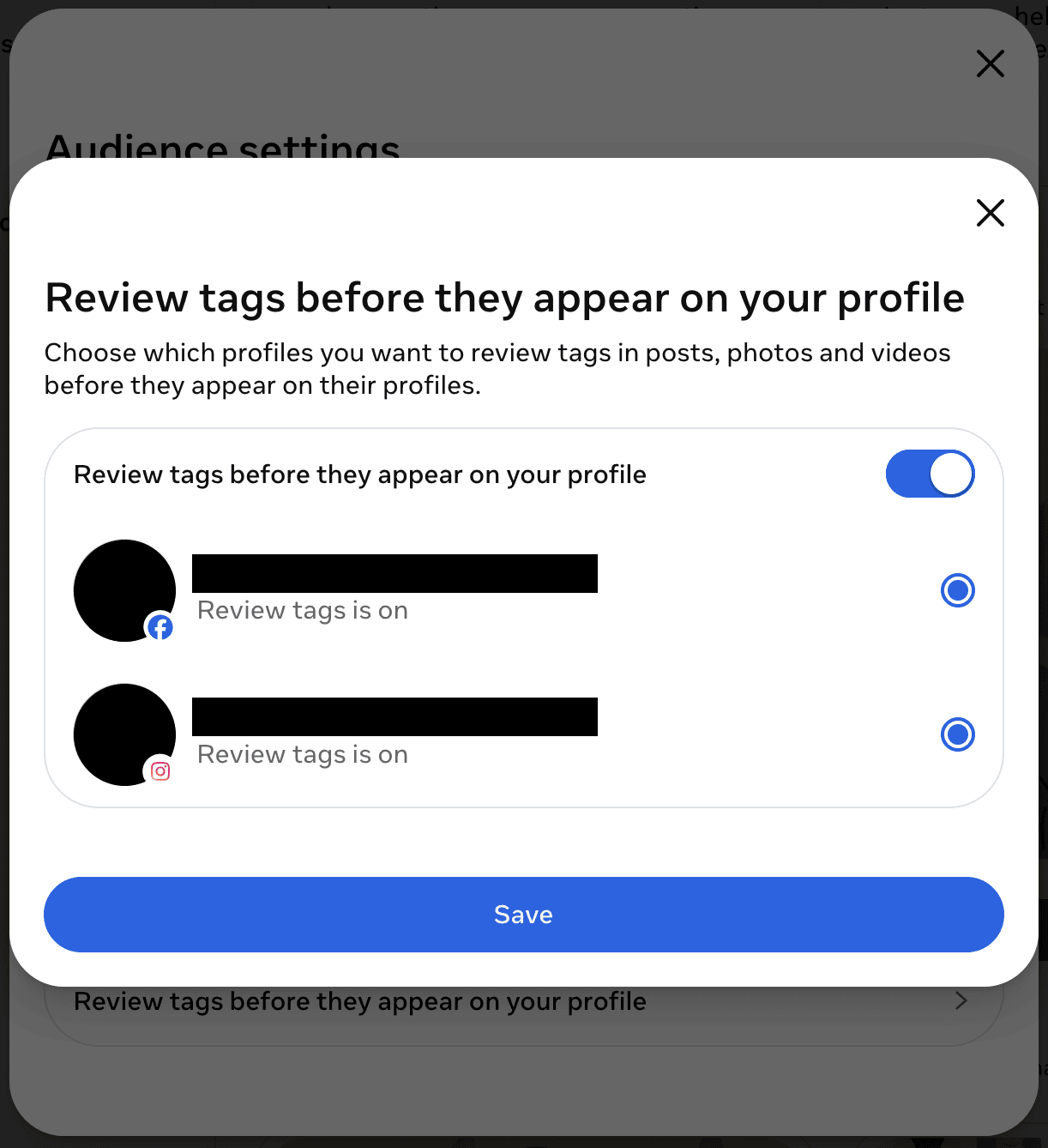
Review tags as above and toggle “On” for both.
Alternative Recommendations
If making your account completely private is not a step you are comfortable taking, we would still strongly recommend that you review all past posts, including images/videos related to the impacted individual and their close connections, and making those posts visible to “Friends” only. To do this, you will have to go to each post and manually select the audience.
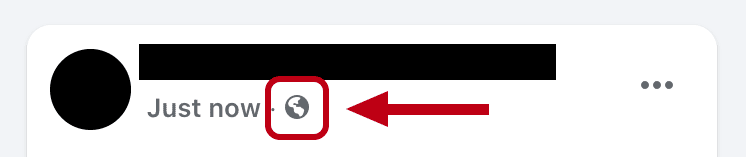
For example, if your post has a globe next to it, this means the post is publicly visible to anyone with a Facebook account and runs the risk of being visible to those without a Facebook account as well.
To change this, click on the globe and change the audience to “Friends”.
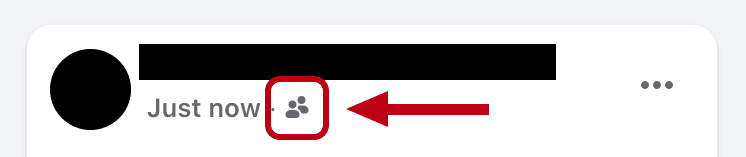
If the post is already limited to “Friends”, the icon should appear like this:
Please note that as this will require going through individual posts, it is easier to miss less obvious posts that may still present vulnerabilities. For example, posts where friends may have innocently may have made comments containing pieces of identifying information.
Final Suggestions
We always recommend the additional reminders to enhance safety:
- Review your current friends/followers to ensure you know and are comfortable with who has access to your profile.
- Review any new friend/follower requests and only accept requests from people that you know.
- Visit https://www.facebook.com/settings/?tab=privacy to review who can send you message requests. Consider limiting requests to friends (or friends of friends) to avoid unwanted incoming requests.
- If you find that there are people you don’t know attempting to continuously contact you, consider blocking these individuals.
While these recommendations cannot guarantee complete privacy, they will significantly limit vulnerabilities.